How I Built my own AI Agent - GODO
I Built a Terminal-Based AI Agent in Go
I spend most of my day inside a terminal. So when I needed a todo manager, I did not want to open a browser tab or install another Electron app. I wanted something that lives right where I work. That idea turned into GODO, a fully autonomous AI agent for the terminal that can manage your tasks, run shell commands, search the web, query databases, and remember context across sessions.
The Problem I Was Trying to Solve
Most productivity tools ask you to leave your workflow. You switch to a browser, log in, click around, then come back to what you were doing. That context switch is small but it adds up.
I wanted a tool that stays in the terminal, responds in real time, understands what I am trying to do, and actually does it for me. Not just a command-line wrapper around a todo list. A proper AI agent that can take actions on my behalf.
That is what GODO is.
Choosing the Tech Stack
Before writing a single line of code, I had to figure out what I was building with.
Go was the obvious choice for the language. It compiles to a single binary, starts instantly, has no runtime overhead, and makes it easy to ship cross-platform. For a terminal tool that people will install and forget about, Go is hard to beat.
For the UI, I chose by Charmbracelet. Bubble Tea is a Go framework for building terminal UIs based on the Elm Architecture pattern. You define a model that holds your state, an Update function that handles events, and a View function that renders to the screen. This pattern keeps things predictable and easy to reason about. It also pairs well with Lipgloss, another Charmbracelet library for styling terminal output.
For storage, I picked SQLite. It is a file-based database that needs no server, stores everything locally, and works great for small to medium amounts of structured data. Every todo, every chat message, every memory the agent saves lives in a single SQLite file on your machine.
For the AI, the older version used the Gemini API. But the current version has moved to an OpenAI-compatible API setup, which means you can plug in any provider: Gemini, GPT, Claude, or even a local model via Ollama.
The full stack is:
How the Architecture Works
The codebase is organized around a few clear layers.
The internal package layout
The cmd/godo directory is the entry point. It boots the config, connects to the database, and hands control over to the Bubble Tea runtime.
The Bubble Tea loop
Every Bubble Tea app follows the same cycle:
- Something happens (key press, API response, timer tick)
Updatereceives the event and updates the modelViewrenders the current model to the screen
The tricky part with an AI agent is that API calls are slow and happen asynchronously. Bubble Tea handles this through commands, which are functions that run in the background and return messages when they finish. So when you send a message to the agent, GODO fires off a command that calls the AI API, and as tokens stream back, each chunk arrives as a message that updates the UI in real time.
This is why the UI feels responsive even while the AI is thinking.
Streaming responses
The streaming setup was one of the more interesting parts to build. Most AI APIs support server-sent events for streaming, where you get tokens one at a time as the model generates them. In Go, you read these from an HTTP response body in a loop, parse each line, and send the content to a channel.
In GODO, there is a StreamResponse channel in the config package. The agent action writes tokens to this channel as they arrive. The Bubble Tea model listens to the channel via a polling command and appends each token to the current message buffer. The View function renders the buffer on every tick, so you see the response appear word by word.
Building the AI Agent
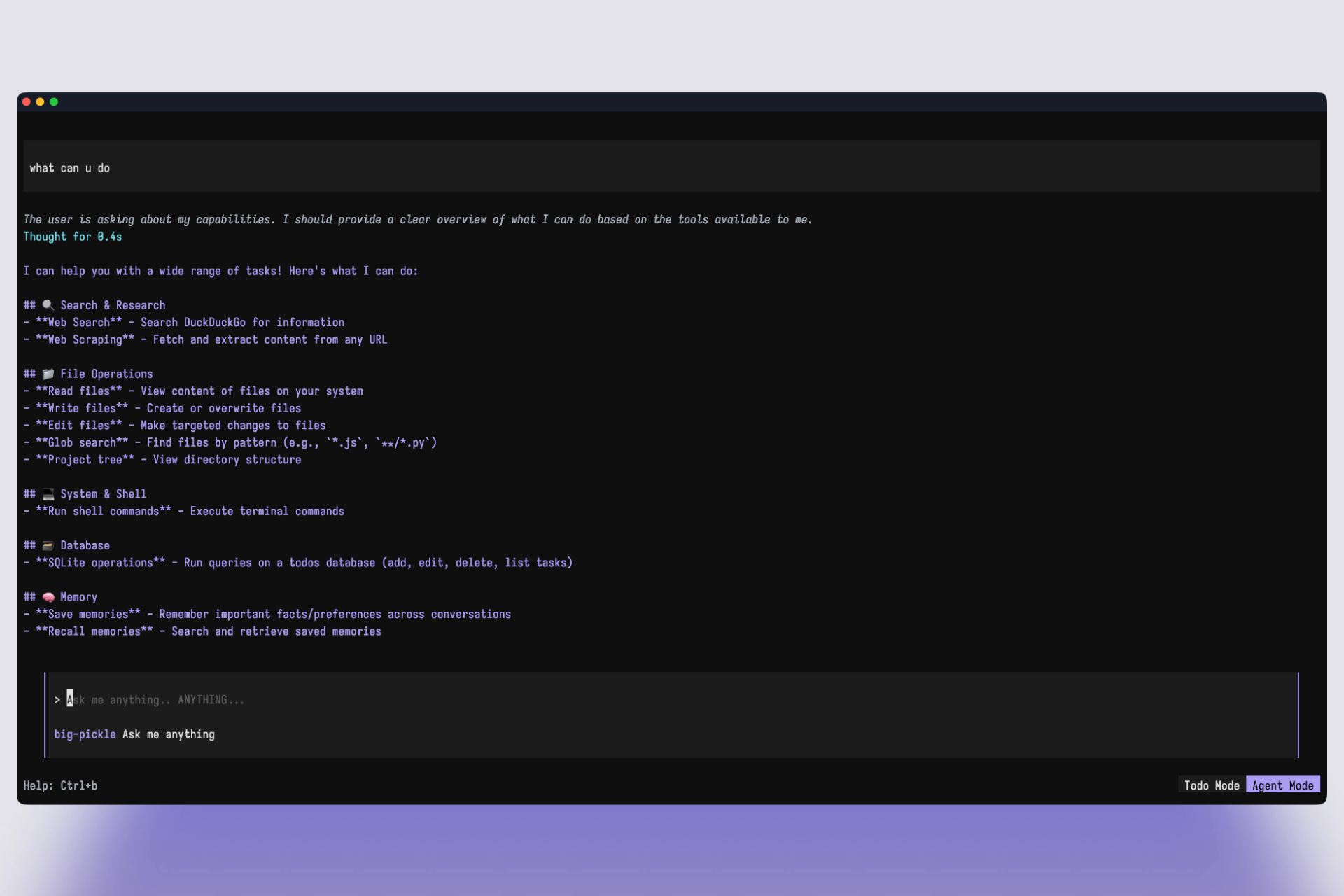
The most complex part of GODO is the agent system. A basic chatbot just takes your input, sends it to the API, and shows you the response. An agent can also call tools, meaning it can decide to run a command, read a file, or search the web before it responds.
How tool calling works
When you send a message, GODO sends it to the AI model along with a list of available tools and their descriptions. The model reads your message, decides which tools it needs, and returns a response that says something like: "Run the shell command ls -la" or "Search the web for this query."
GODO sees that tool call response, executes the requested action, and sends the result back to the model as context. The model reads the result and continues. This loop keeps going until the model has enough information to write a final response to you.
The tools GODO gives the agent are:
- Shell execution — run any bash command on your machine
- File system access — read, write, and list files and directories
- Database queries — run SQL against a local SQLite database
- Web search — search DuckDuckGo and get back results
- Task management — add, search, and update todos
- Memory — save and retrieve persistent context across sessions
Memory across sessions
One of the features I am most happy with is persistent memory. When the agent learns something useful about you, like your preferred workflow or a project you are working on, it can save that as a memory to SQLite. On the next session, those memories are loaded back into the system prompt as context.
This means the agent gets better the more you use it. It remembers that you prefer a certain coding style, or that your project uses a specific database schema, without you having to explain it every time.
The memory module is simple: a table in SQLite with a timestamp and a text field. The agent decides when to write to it and what to save. The builder package formats all active memories into the system prompt before each conversation.
The Todo System
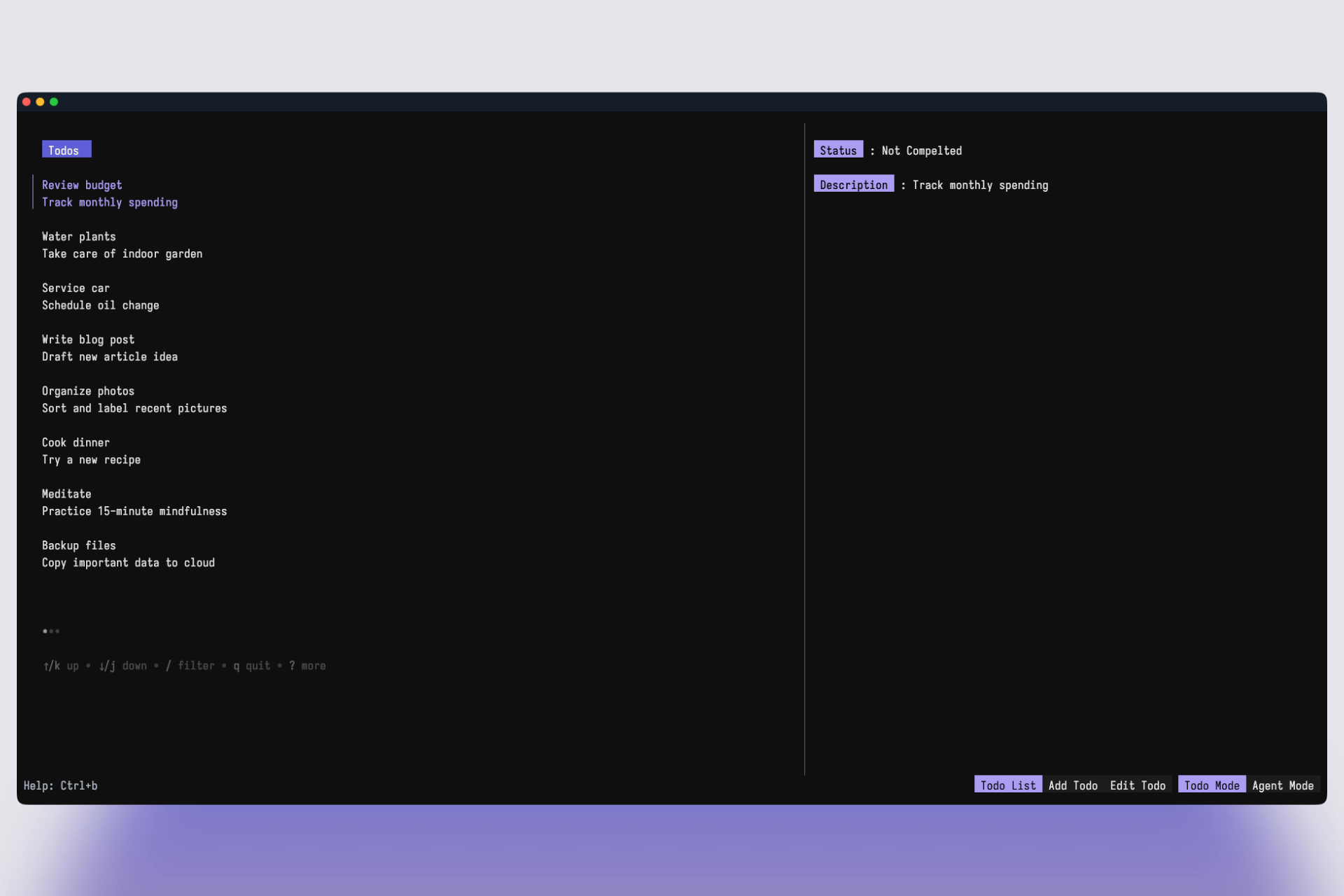
The todo system is the original core of GODO. Before it became a full agent, it was a terminal todo manager with AI assistance built in.
Todos are stored in SQLite with these fields: an ID, a title, a multiline description, a status (done or pending), and a created timestamp. The TUI shows them in a scrollable list, and you can search by title, toggle status, and add new todos with multiline support.
The multiline input was something I had to think about carefully. In most terminal UIs, pressing Enter submits the form. But for descriptions, you sometimes want a real newline. I solved this by using Shift+Enter for newlines and plain Enter to submit. The Bubble Tea textarea component from the Bubbles library handles this cleanly.
The agent can also manage todos on your behalf. If you tell GODO "mark my task about the API as done," it will search your todos, find the right one, and update it. You never have to open the todo list view at all.
Styling the Terminal UI
Terminal UIs have a reputation for looking ugly. I wanted GODO to feel polished.
Lipgloss makes this possible. It lets you define styles using a chainable Go API, similar to how you would write CSS. You set foreground colors, background colors, padding, margins, borders, and alignment. All styles in GODO live in the tui/ui/styles package so they are consistent across both views.
The chat view renders markdown properly in the terminal using the glamour library, also from Charmbracelet. So when the agent responds with a code block or a numbered list, it looks good. Not like plain text with asterisks around it.
The layout switches between the todo list view and the agent chat view. You can move between them with a keystroke. Both views share the same window size so transitions feel smooth.
Installation and Distribution
I used GoReleaser with GitHub Actions to handle releases. When I tag a new version and push it, the pipeline compiles GODO for Linux, macOS, and Windows, then uploads the binaries to a GitHub release automatically.
The install script does everything a user needs:
It downloads the right binary for your system, puts it in ~/.godo/bin, and tells you how to add it to your PATH. First run creates the config directory at ~/.local/share/godo/ with a blank .env file you can fill in.
You can also install via Go directly:
And there is a built-in update command so you can stay current without going back to the install script:
Using Local Models with Ollama
One thing I wanted from the start was a way to use GODO completely offline and for free. The OpenAI-compatible API format makes this easy. If you have Ollama installed, you just point GODO at it:
That is it. GODO does not care whether the model is running on a remote server or locally on your machine. It just sends requests and receives responses in the same format.
This also means you are not locked into any one provider. If you have a Gemini API key, use that. If you want GPT-4o, use that. If you want to run something local and keep everything on your machine, Ollama handles it.
What I Learned Building This
A few things stood out.
Streaming in Go is straightforward but requires careful channel design. You need to think about buffer sizes, what happens when the consumer is slow, and how to signal the end of a stream cleanly.
Bubble Tea's architecture forces you to write clean state management. Because everything goes through the Update function, you can not have hidden state scattered around your codebase. This is sometimes verbose but it pays off when you need to debug.
SQLite is genuinely underrated for tools like this. No setup, no configuration, queries are fast, and the file lives right next to your data. For a local-first tool, it is the right default.
Tool calling turns a chatbot into an agent. The difference between "the AI tells you what to do" and "the AI does it for you" is the tool system. Building that loop correctly, handling errors gracefully, and giving the model good tool descriptions makes a huge difference in how useful the agent actually is.
Where to Find GODO
GODO is open source and available on GitHub at .
If you spend time in the terminal and want a smarter way to manage your tasks and get things done without leaving the command line, give it a try. Issues and contributions are welcome.
The 60% of this blog is written by claude