I Learned MCP From Anthropic's Course in 2 Days
I started a course from antrophic about MCP
In this blog im going to tell you what i have learned from the course so if you are thiking to join the course atleast you get a overview of it
Okay, to continue with the course you will need to know besics of python.
The course suggest to have uv installed in your system (this is most common nowdays for python devs) but there is detailed instruction for non uv users
If don't you have installed uv you can simply instll it from :
At the point when i started the course i had very less knowladge about MCP (Model Context Protocol)
What is MCP
MCP is a communication layer. Before understanding MCP, we need to understand what a tool is in the AI world. Tools are nothing but some functions that we execute when AI suggests them. For example, imagine we have a function called get_current_date.
when user asks what is the time, instead of guessing the model will respond by asking to run the tool get_current_date
and our application will execute it and send the result to the model and the model will tell the user what is the current date
This is what tool calling
Okay now get back in MCP
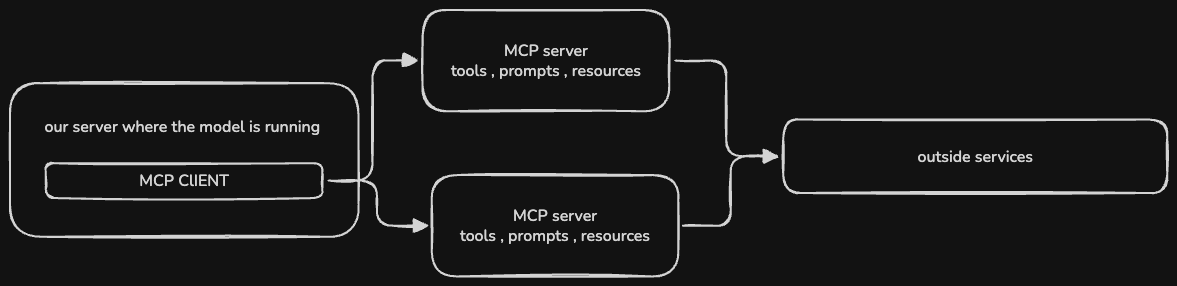
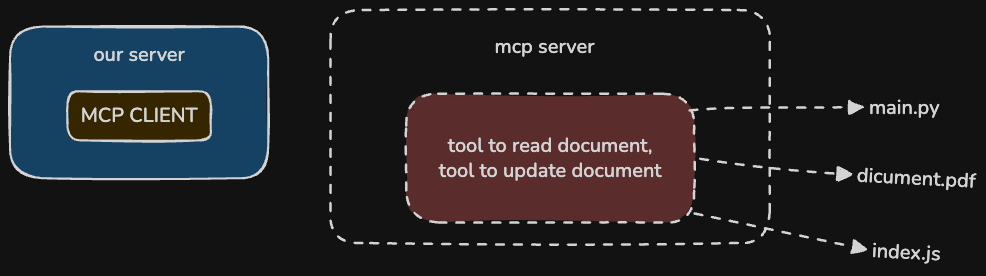
you can see in this diagram that the first box contains our server where the model is running as a chatbot or any ai assistant along with a MCP client MCP client is used to send standardized request. when the model goes beyond its knowledge context or needs to perform an action, the client makes a standardized request
You can than see the arrows pointing from MCP client to the MCP servers
What is an mcp server
An MCP server is a dedicated service that exposes tools, data, and instructions to the AI model in a standardized way. It acts as the bridge between your AI application and the outside world.
- Resources : Data that the model can read (like a text file, database data)
- tools: Functions the model can trigger
- propmts : Pre defined instructions or templates
At the end, we have outside services These are the external resource that ai wants to access like any external website or drive data
What was the problem before MCP?
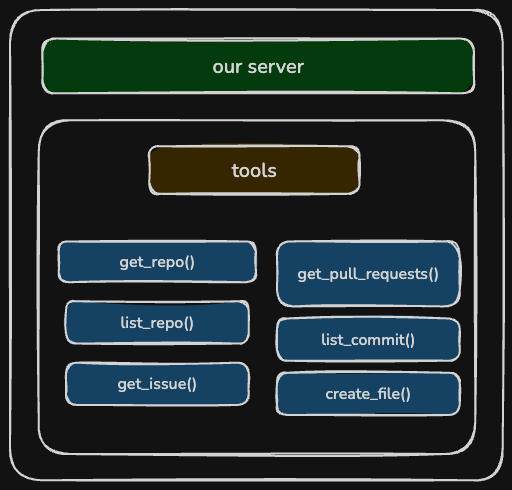
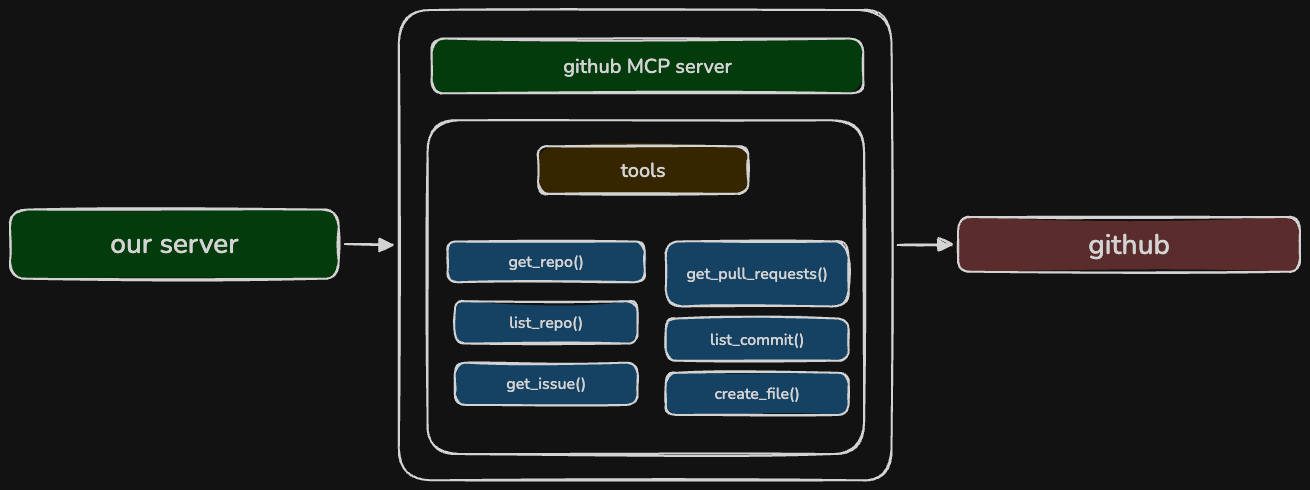
For example if you ask the model to get your Github data the model will need some tools to execute. User might ask "get the URLs of all my repositories". the model will need to run tools to access githib api.
Github with massive functionality its very hard to make each tool for each app. Without mcp you would have to create huge number of tools to handle all github features
How MCP solved it ?
MCP shifts these tools from our server to a dedicated MCP server. A dedicated Github MCP server will handle all tool management instead of our server
Instead of creating each tool from scratch, our application just connects to that server.
Is Tool use/calling and MCP the same?
No, tool use is how the model calls the tools, but mcp is what provides you the schemas and functions of various tools that are already defined.
Do you need to make all MCP servers?
No, most of the time the service provider will provide an MCP server for your application. But you can make your own MCP server. The same apllies for MCP client.
What is an MCP Client
The MCP client is used to communicate to the MCP server and your application server does not connect to the MCP server directly MCP client is the bridge that enables communication from application server to MCP server MCP client is an access point of various tools implemented by the MCP server
MCP is transport agnostic, which means the client can connect to the server in various communication protocols. If both client and server in same physical machine, it can use standard io . It can also use http or websoket etc.
They communicate each other exchanging messages
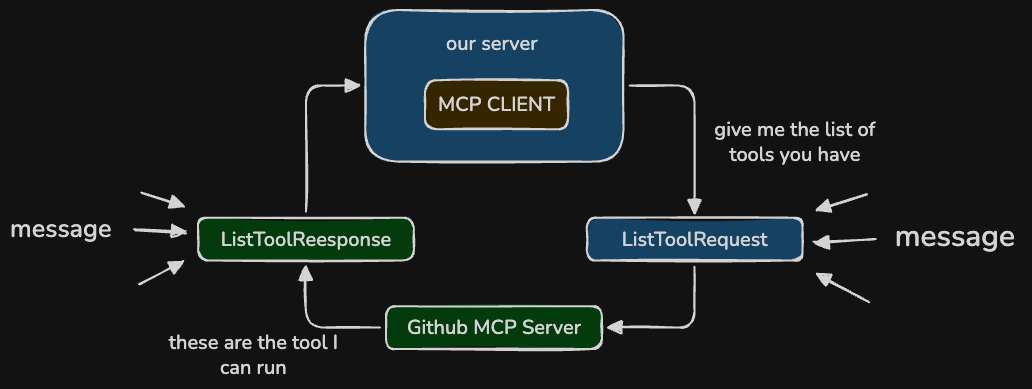
All allowed messages (ListToolRequest, LisToolResponse etc) are defined in MCP spec.
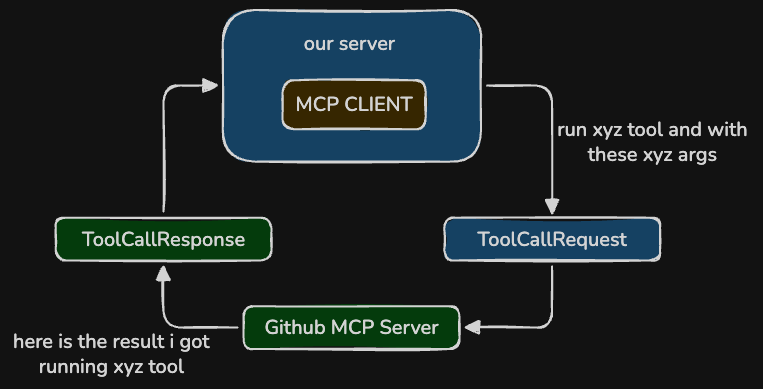
There are more messages like CallToolRequest, CallToolResponse.
How does mcp work
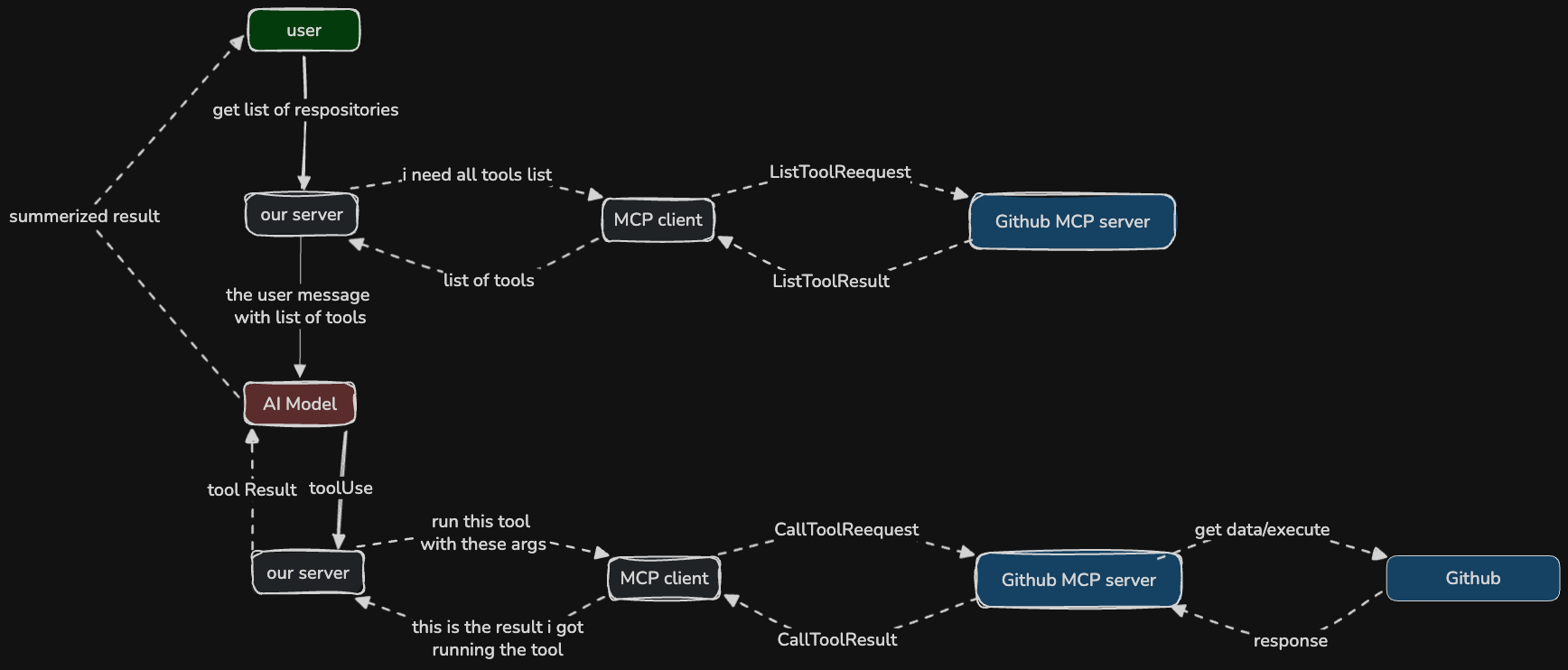
When a user sends a message, instead of forwarding it directly to the model, we call the MCP client, which in turn calls the MCP server to retrieve its list of available tools.
Once we have the tools, we send the user's message along with the tool list to the model. If the request requires a tool call, the model responds with a tool call response.
The MCP client then sends a CallToolRequest to the MCP server, which executes the tool and returns the result to the MCP client. Our server receives this result and forwards it back to the model.
The model processes the result and returns a summarized response, which we then send back to the user.
Project Setup
If you follow the course they have provided some boilerplate code which uses Anthropic API key 🙄
So I changed whole codebase to use OpenAI sdk instead of Anthropic using claude
I will be using api key for the project.

For most projects you will implement only one thing, either an MCP client or an MCP server.
but, Here we are going to implement a MCP client and a custom MCP server
Project goal
we will be building a chatbot which can read and update documents
You can clone the boilerplate repository diretly from here:
Atfirst read the README.md [blocked] file to setup the project
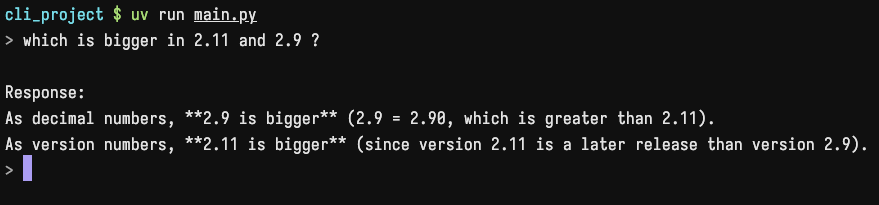
You can see the chatbot is working but it does not have functionality to read or update documents In this project we are using official MCP sdk for python
Look at mcp_server.py file
In this file we will write some tools (functions) for our MCP server
I wrote some tools you can copy
For reading:
For editing documents:
Now we have 2 tools. What if we could test them 👀 Yes, we can test our tools in our browser
The MCP SDK for Python provides web based debugger, which we can use to test the tools
To test this you have to active your python environment.You can see full details in README.md file
After that, run mcp dev mcp_server.py
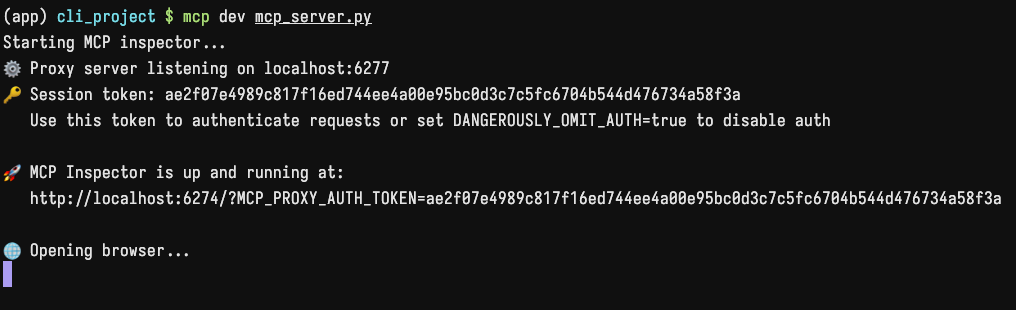
Which will run the debugger
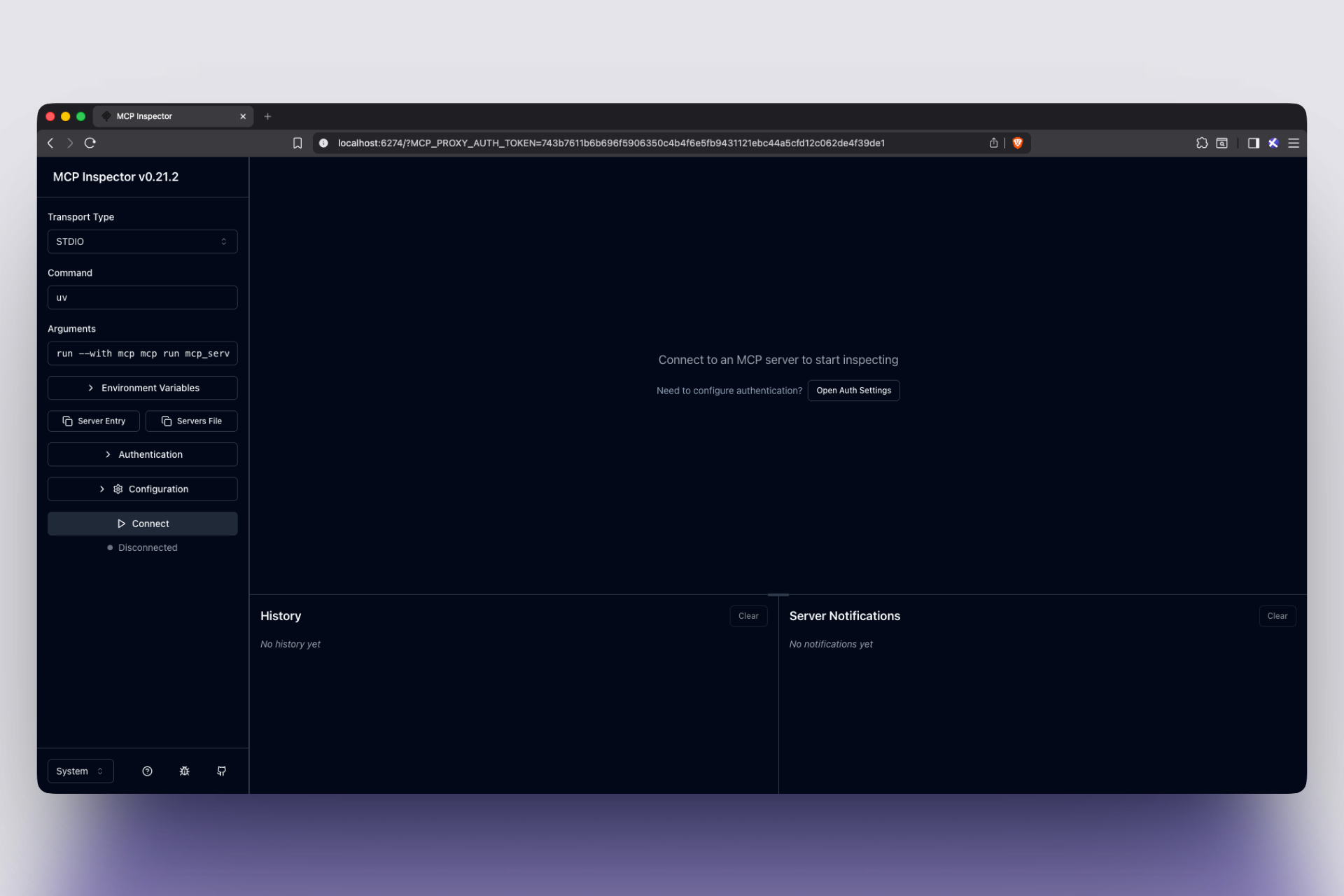
If you Click the Connect button you will see all of your resourses tools etc.
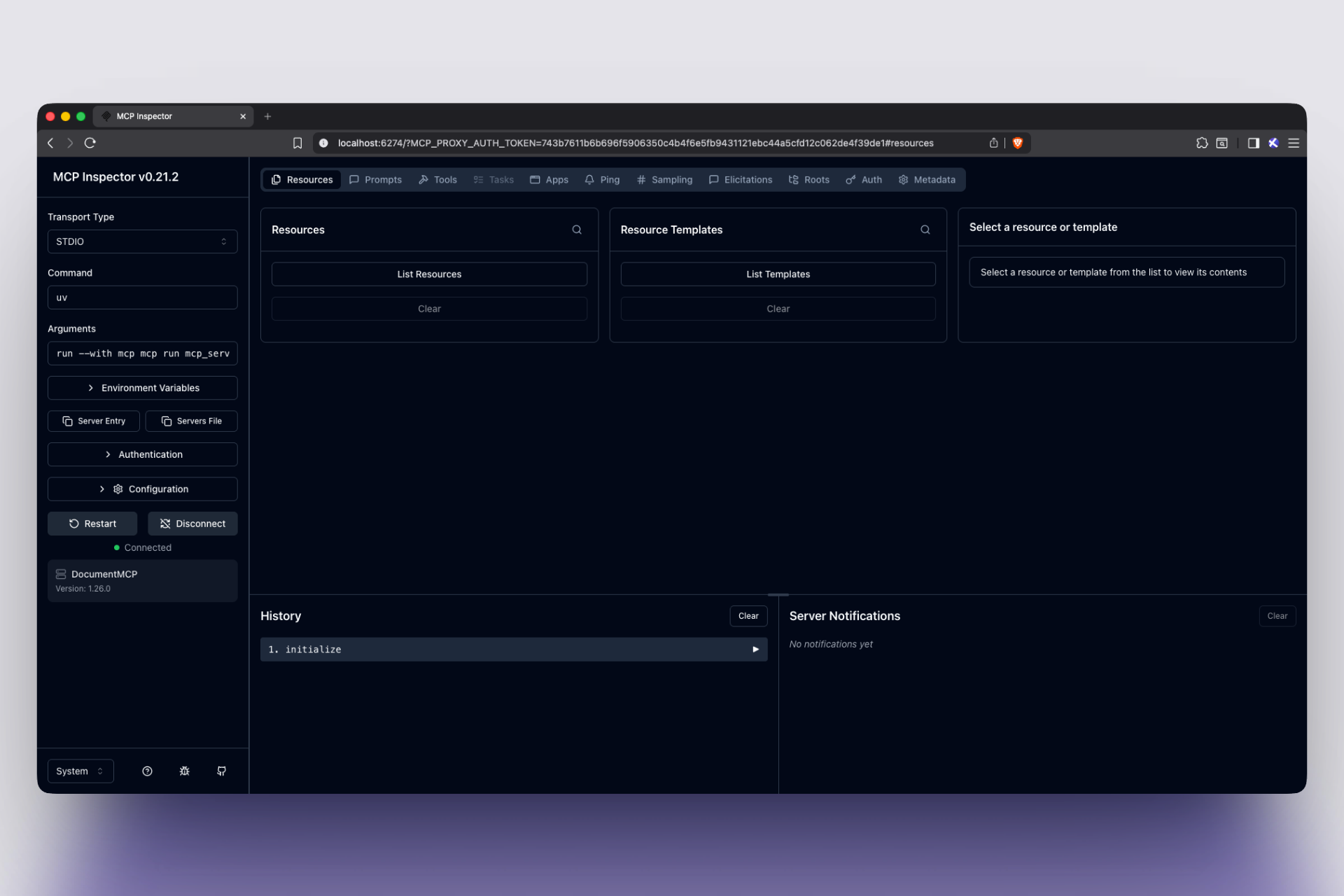
We can navigate to the tools section, which will show all the tools we have built and we can also test them there
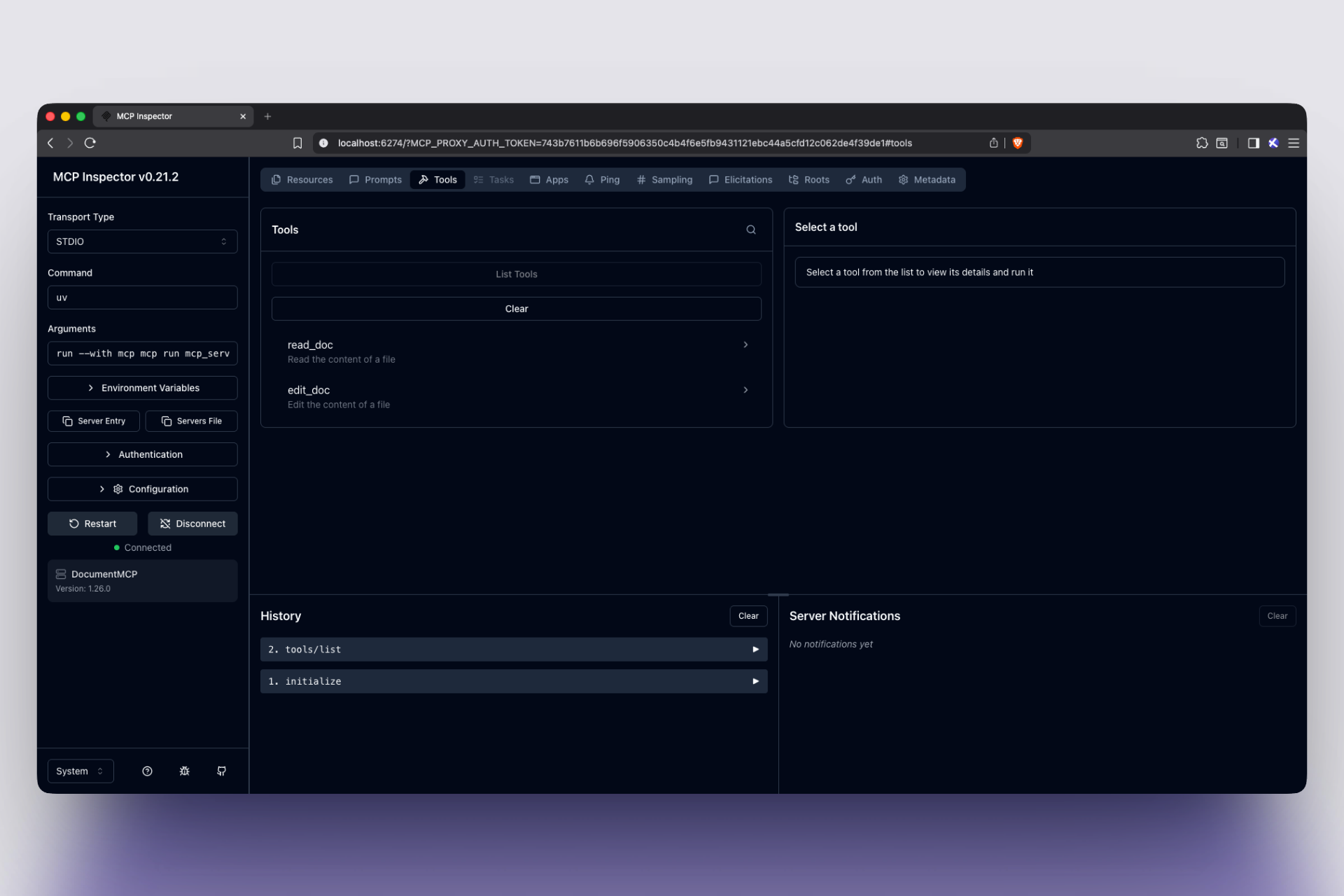
This is very helpful while you are working with MCP
Implementing MCP client
Before implementing the client, lets look at the main function in main.py file
We don't know how many clients have to be created.
That's why AsyncExitStack is used to clean up on exit of the main function
After that, we are initializing CliChat with those clients
CliChat has bunch of methods you can check in core/cli_chat.py
Our MCP server has methods called list_tools and call_tool but our MCP client is still not aware of them, so we have to implement them.
in mcp_client.py file check list_tools, call_tool, list_propmts functions and replace with:
Now we can get a list of tools, call any tool, and a list of prompts
To test it replace the main function with this
Now if you run uv run mcp_client.py or python mcp_client.py (based on ur setup)
You should see a list of tools as output

Now we can test our chat CLI
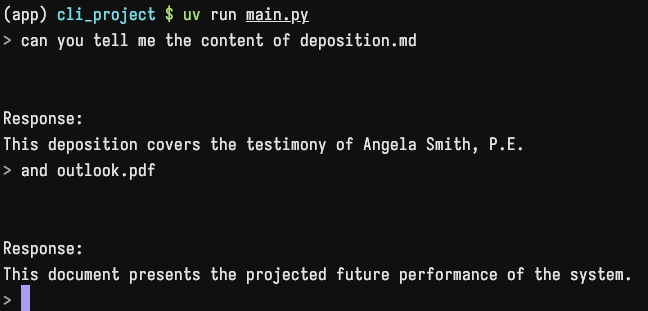
It's working properly 👀
MCP Resource
Now we are going to add an autocomplete feature in our CLI
on typing @, we will get file name suggetions
To build this we will need to use MCP resource.
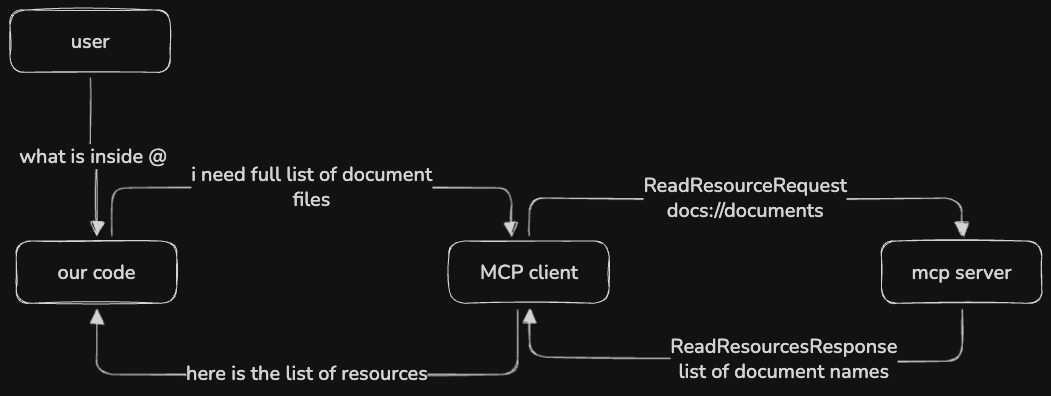
To create a resource we will need the URI and mime_type of the resource
- URI is just like a typical HTTP URL
- We use
mime_typeto hint the client about the data type we will return. This will help the client build applications with less stress
There are 2 types of resources
- Direct resources:
- Direct resources are static, because the URI doesn't changes. Ex :
docs://documents
- Direct resources are static, because the URI doesn't changes. Ex :
- Templated resources:
- Templated resources are dynamic URLs that include parameters in URI. The Python SDK automatically parses these parameters and passes them as keyword arguments to your function. e.g.
docs://documents/{doc_id}Inmcp_server.py, add these resources
- Templated resources are dynamic URLs that include parameters in URI. The Python SDK automatically parses these parameters and passes them as keyword arguments to your function. e.g.
Now we can test it in our browser by running mcp dev mcp_server.py
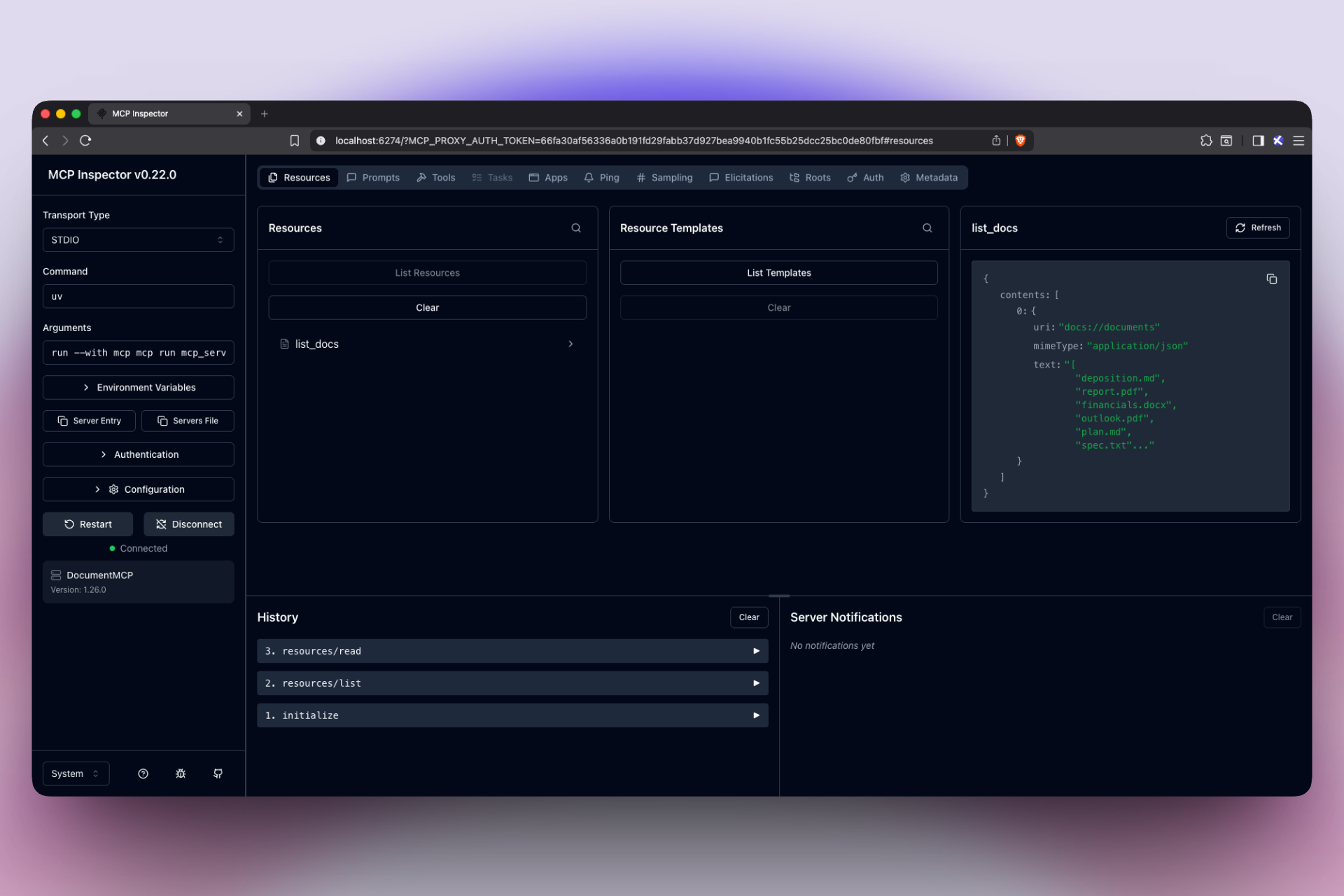
We can access our MCP resources in resources tab
Now we have to complete the read_resources function present in mcp_client.py
Also don't forgot to add the new imports
That's it.. run main.py and type @
You will see the completion is working
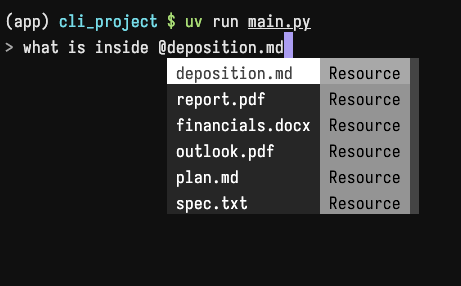
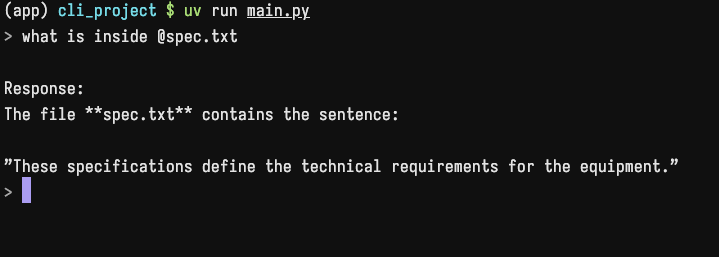
The codebase using prompt_toolkit for cli
you can check whole completion login in core/cli file
Prompt in MCP
Prompts provide reusable instructions. An MCP server lets you define high-quality prompts so users don't have to write them from scratch every time.
For a specific application, some prompts are common for all users. Instead of having each user create the prompts repeatedly you can define them once in MCP server and make them available to everyone.
In our MCP server it is easy to define prompts like tools and resources.
Now we are going to build a feature where, when a user types /, we will show a completion for /format_doc, and then on pressing space, we will show a list of docs.
When the user sends this, we will use our high-quality prompt to format the docs in Markdown syntax using the model.
You cad add prompt like this:
Now we can test it in our MCP debugger by running mcp dev mcp_server.py
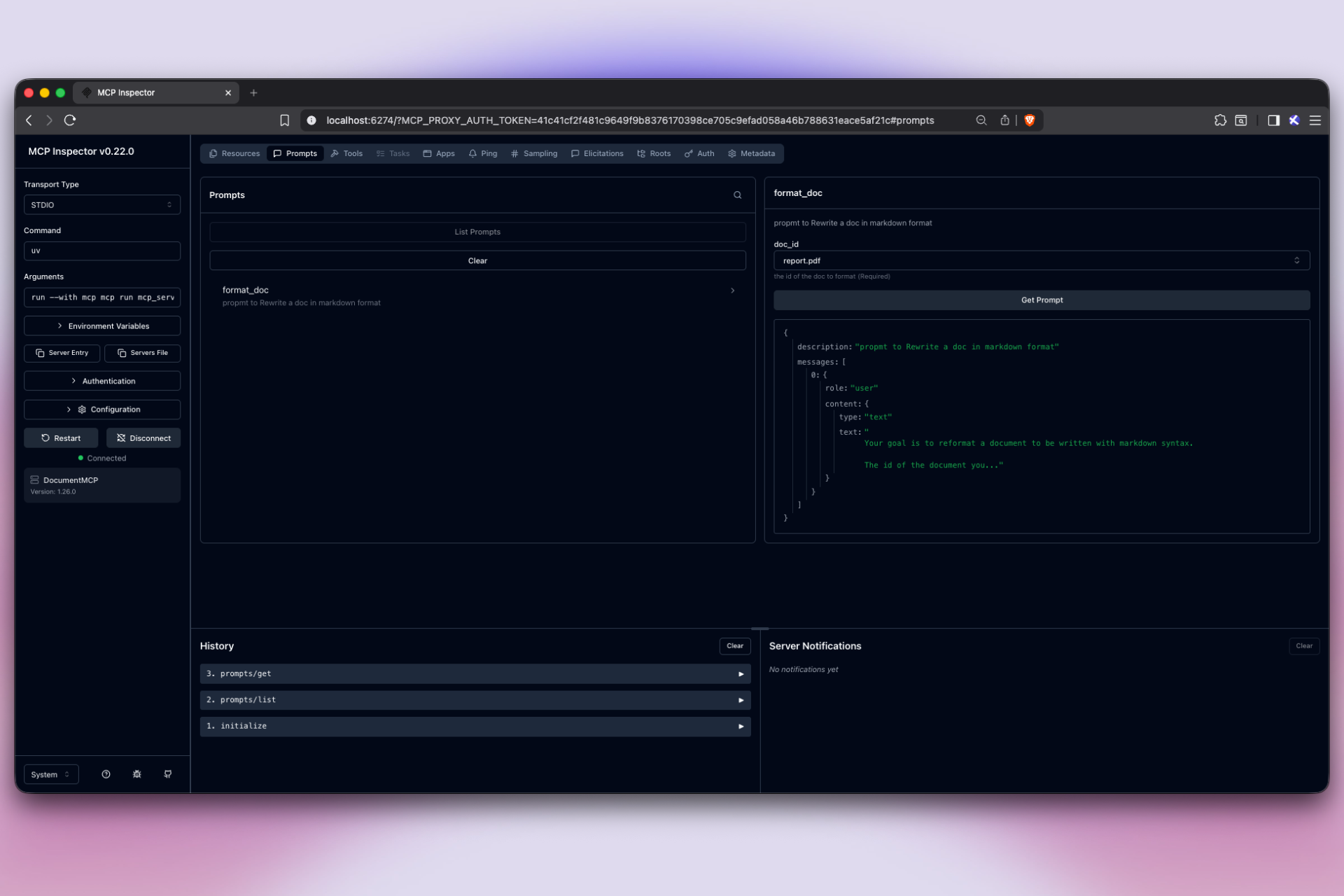
Add prompts in mcp_client.py file
Run uv run main.py to test it.
After running uv run main.py type /f you will see a compilation for /format_doc
Press Tab to select it, and then press Space. You will see a list of our docs.
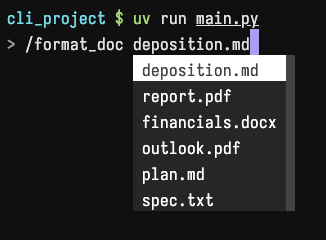
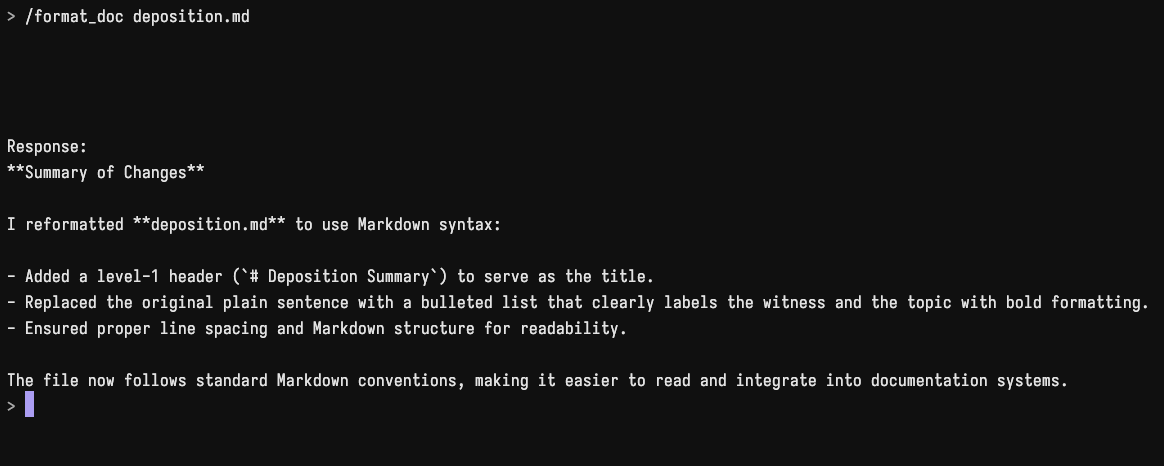
Our model successfully formated the docs to markdown syntax
Before finishing lets recap what we have learned So, we have 3 MCP primitives
- tools:
- tools are model controlled. The model chooses when to call these tools. this tools are the core or additional functionality of the model
- example : search on web, read a file
- prompts:
- prompts are user-controlled. user decides when to use these. used to help user avoid rewriting common instructions
- example: 'review this code', "summarize this blog"
- resources:
- resources are application controlled. expose data that model can read
- example: documentation file, Configuration files, Knowledge base articles
How was the course? : review
I'm rating it 10/10 because the code helped me understand MCP beautifully, free of cost. Even though the code was Claude specific, I have already changed it and you can find the code here.
Should you check it out?
If you are a beginner on this topic, you can check it out. If you have read my full blog, you will understand the course much faster and get a certificate.
Thanks for reading... ❤️