The only shell (terminal) config you need

I Spent Months Building My Shell Config So You Don’t Have To
I used to be a Linux user and now I'm using MacOS, you know both are similar in terms of terminal environment, Unix tooling, and shell workflows.
If your shell setup is bad, your workflow probably is too
TBH I used to tweak my shell every week.
Now I haven’t touched the core setup in 6 months, which probably means I finally got it right.
My plugin manager free config includes:
- Fast and minimal Zsh setup
- Smart directory jumping using zoxid
- Fuzzy search everywhere with fzf
- Git-aware custom prompt
- Custom widgets for notes, diary, and MDN browsing
- Instant note-taking workflow inside Neovim
- Syntax highlighting and command autosuggestions
- Fast tab completion with fuzzy matching
- Docker utility aliases and cleanup helpers
- Large shared shell history across sessions
- Cross-platform workflow between Linux and macOS
- Terminal-first productivity setup
- Minimal plugins with low maintenance
- Keyboard-driven workflow with custom keybindings
- Reproducible and stable daily-driver configuration
Assuming you already have Zsh installed
First thing: Installing the plugins
I’m not using any plugin manager because, WHY?
create a file named .zsh_functions in your home dir and paste it:
And your plugin manager is ready 😂
the zsh_add_plugin function will download all the plugins we will specify.
You can find the full configuration here
To make the shell powerful and beautiful, you only need to work with two files:
.zshrc.zsh_functions
Both files should be located in your home directory.
Autosuggestions and Better Completion
One of the biggest quality-of-life improvements in my shell workflow comes from autosuggestions and fuzzy completions.
First inatall fzf if you haven't already
I use:
"zsh-users/zsh-autosuggestions" for inline command suggestions
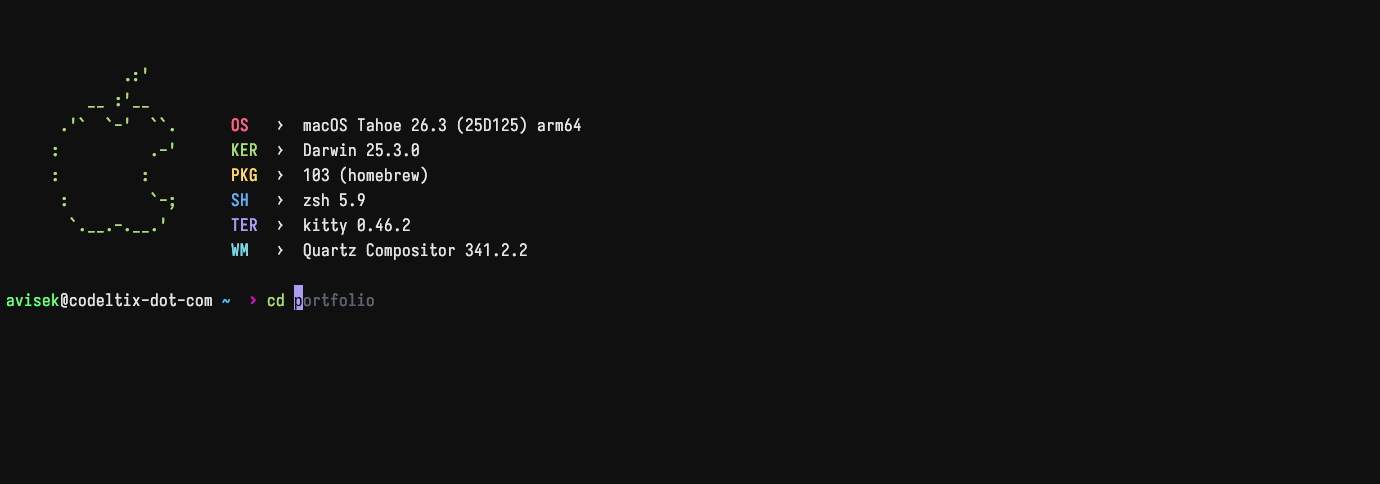
"zsh-users/zsh-syntax-highlighting" for syntax highlighting

"Aloxaf/fzf-tab" for fuzzy tab completion
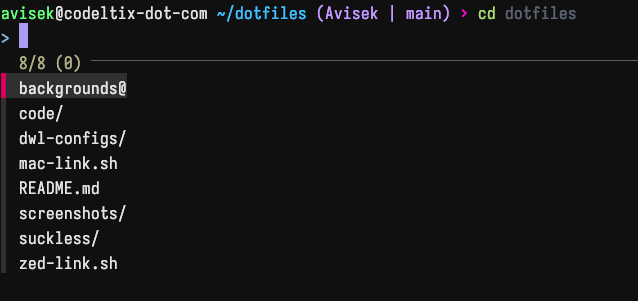
Custom Keybinds
I added a few custom keybindings to make navigation and history searching feel more natural.
Mimimal but Powerfull PROMPT
if you look at the .zsh_functions file you can see there is a function named git_status
Here I use that function directly inside the shell prompt to display useful git information.

This is very useful when you are working on a repository that has multiple branches or when you have multiple Git users.
Storing the command history for future auto suggetion
The autosuggestions mainly rely on shell history, so keeping shared history file makes suggestions significantly more useful over time.
you can modify the size based on your needs.
The easy CD
I use zoxide to make directory navigation much faste
Note Taking
Terminal is enough to take notes for me 👀
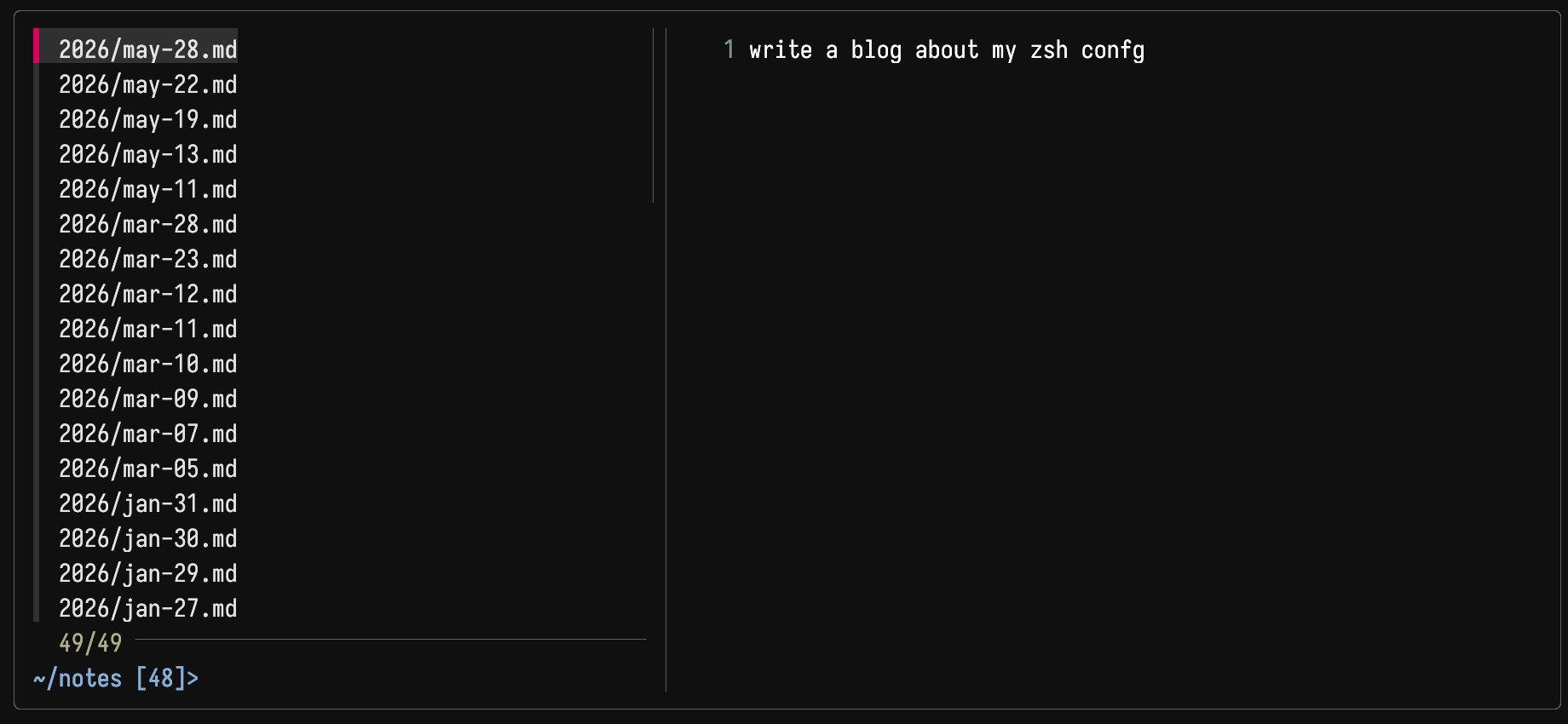
This will open Neovim when you run note, and when you save, it will store your note using the current date as the filename.
Run notes to get a list of your notes, then press Enter to view or modify them using Neovim.
ENV management
Keeping environment variables directly inside the config file is not a good idea.
This is not for vibe coders

So I keep my environment variables inside a ~/.secrets.sh file. Then, inside my config file, I simply source it:
when i modify the .secrets.sh file i just run reload command instead reloding the full shell
some aliases you can use
you are done!
Thanks for reading... ❤️